EYBridge APRS / MQTT Manager: 5 August 2026
The EYBridge project
allows you to visualise your EYTraker units in a web-based environment and
allows you to expose numerous tracking data endpoints to your MQTT broker that
will allow integration into Home Assistant or other applications. Tracking data
is obtained from a APRS java server.
It runs on any ESP32 Dev Module with the full .bin install file
provided in the download section. A new innovative remote management
configuration environment is also included for V11 EYTrakers running firmware
11.16 and higher.

The bridge also
has innovative abbreviation cards for a quick tracker summary where the more
detail can be hidden, if required.
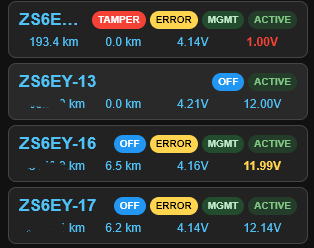
The
EYBridge has comprehensive configuration options that
include:
·
Home
Wi-Fi setup with DHCP/Fixed IP options
·
APRS
Java server setup
·
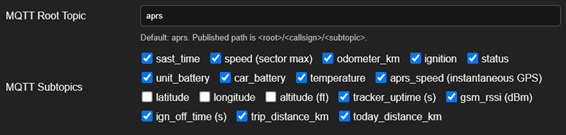
MQTT
broker connection that exposes 17 selectable endpoints for each tracker
·
Secure
configuration login and password (Default is aprs/aprs)
·
Tracker
remote management configuration for EYTrakers running firmware v11.16 or higher
·
Dashboard
colour configuration, card alphabetical sorting, persistent card settings,
odometer calibration and NTP time server UTC offset
·
Option
to display up to 30 EYTraker data cards with odometer setting and MQTT enable
option per callsign. There is also an optional numberplate display option.
·
Over
the air firmware upgrade with the latest firmware upgrade loaded on the
download page.
·
Configuration
export and import in json format for easy offline
storage or editing.
·
Remote
System reboot
The
new remote management function, that works on the new ESP32S3
V11 trackers, allow you
to change many of the tracker settings remotely routed over a separate LTE
socket in the firmware. The GSM data and tracker online time plus all the
tracker settings are exposed for real time updating or Wi-Fi radio management,
if required.
|
|
|


This
best way to experience the EYBridge is to load your
own version of the system on a ESP32 Dev Board.
There
are 2 options available to flash the ESP32 module:
Option
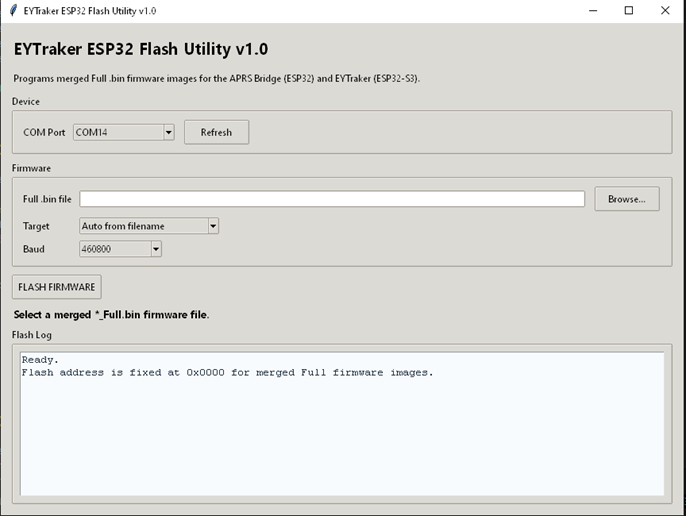
1: Custom EYTraker Flashing tool:
·
The
.bin full firmware can be downloaded and flashed with the EYTraker
Flashing utility also located in the download section. Both the executable file
and the Python source code is available. The executable will be flagged by MS
SmartScreen but click on More info and run anyway. The other option is to run
the Python code on Visual Studio Code with the correct libraries installed.
·
Connect
the ESP32 Dev board to the PC with the cable plugged into the USB port. If the
CP2102 drivers are not loaded on your PC, you will have installed then. Without
the drivers the COM port will not show up and the port
will be flagged as unknown in the Device Manager of you
Windows machine.
·
Refresh
the Flash tool Com port and select the ESP32 Com port.
·
Browse
and load the EYBridge Full.bin
file that has been downloaded previously and the flash utility will auto select
the ESP32 in the target window, make sure this is the case. Leave the Baud rate
at 460800.
·
Click
on the FLASH FIRMWARE button on the flash utility and confirm the installed
progress in the status window.
·
When
done, reboot the ESP32 by pressing the reset button and look for the APRS-Bridge-Config
Wi-Fi Access point (password: aprsbridge) on your
phones or laptop Wi-Fi section and connect to IP address 192.168.4.1 via your mobile
phone or laptop.
·
Scroll
down to Bridge Config, click (username aprs and password:aprs) and populate the
Home Wi-Fi SSID and password. Leave the unit on DHCP for now. Scroll down to
Save Configuration & Restart and let the unit reboot.
·
The
home W-Fi IP address will be on your home router configuration screen with an
IP address issued by your router DHCP. Open the EYBridge
on the new IP address issues by your home router and enjoy!
·
Once
you have the unit up and running it is advisable to load the latest firmware
via the Elegant OTA function on the config page. This .bin fil is also
available in the download section. Sometimes the initial firmware and the new
firmware are not the same revision.
Option 2: Espressif Online tool
(Unreliable method):
·
The
.bin full firmware can be downloaded and flashed with the Espressif online
utility.
·
Connect
the ESP32 Dev board to the PC with the cable plugged into the USB port.
·
When
the online flash tool website has loaded, select the 115200 baud rate and click
on Connect and look for the ESP32 com port that will become available in the
dialog window, select it and click connect.
·
The
online flash tool sometimes respond with defice not found due to noise on the cable. When the ESP32
is not recognised by the online tool, rather use the EYTraker flash utility.
·
The
Flash address is 0x0000 and select the v3.65 ESP32 Bridge FULL.bin file that you have downloaded and click
program. The firmware will be flashed onto the dev board.
·
When
done, reboot by pressing the reset button and look for the APRS-Bridge-Config
Wi-Fi Access point (password: aprsbridge) and connect
to IP address 192.168.4.1 via your mobile phone.
·
Scroll
down to Bridge Config and populate the Home Wi-Fi SSID and password. Leave the
unit on DHCP for now. Scroll down to Save Configuration & Restart and let
the unit reboot. The home W-Fi IP address will be on your home router
configuration screen.
·
Open
the EYBridge on the new IP address issues by your
home router and enjoy!
·
Once
you have the unit up and running it is advisable to load the latest firmware
via the Elegent OTA function on the config page. This
.bin fil is also available in the download section. Sometimes the initial
firmware and the new firmware are not the same revision.
As a minimum you will have to configure the APRS-IS setup with the
APRS server address (use 41.0.5.122 for the aprs-za
server), port 14580 can be used, bridge callsign, typically your callsign with
SSID of 3. The APRS code is automatically generated. Scroll down to Save
Configuration & Restart and let the unit reboot. You can go to www.aprs-za.com:14501 to see if you bridge is
connected.
You will have to add callsigns to the Dashboard/APRS Filter
callsign section for the bridge to display tracking data. Again, scroll down to
Save Configuration & Restart and let the unit reboot.
Clicking on the callsigns in the full cards will take you to aprs.fi and the raw tracking
details for that callsign. You might have to login to aprs.fi for this function
(registration might be required)
Let me know how the bridge works and if you need more
functionality, also let me know. Email is on the EYTraker landing page.